> For the complete documentation index, see [llms.txt](https://help.qonic.com/llms.txt). Markdown versions of documentation pages are available by appending `.md` to page URLs; this page is available as [Markdown](https://help.qonic.com/documentation/qonic-application/data-and-collaboration/libraries-panel/locations-library.md).
# Locations Library
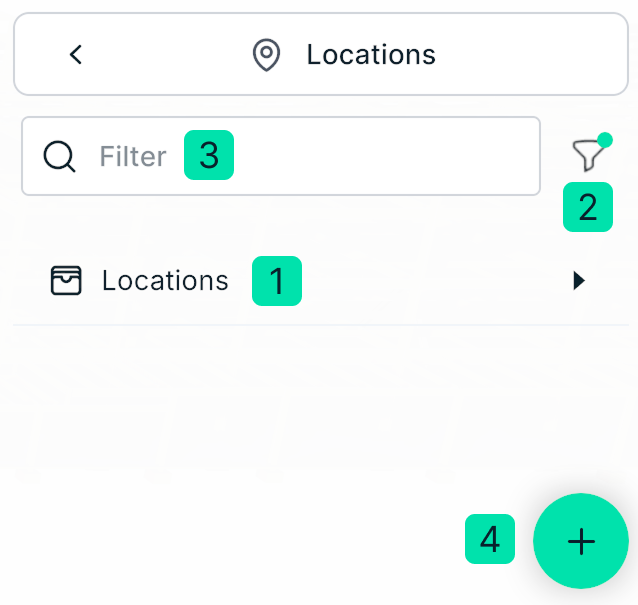
Open the *Locations* library type in the Libraries panel to get an overview of all Location libraries in the project (1). If no libraries are displayed, check if there are any currently active filters (2 and 3). If no filters are active and no libraries are displayed, this means there are no location libraries defined on project level, and the currently opened models contain no location libraries on model level. You can create a new location library by clicking the + button in the bottom right corner (4). This button is only available when the model is opened for editing.
Click a location library to open it. This will display all the locations in this library, and allows you to search on specific locations. If you are not finding the location you are looking for, make sure no filter is active. An active filter is indicated by a green dot over the filter icon. In the filter, choose to *Show* *All* locations or only the locations *Used in Model*.
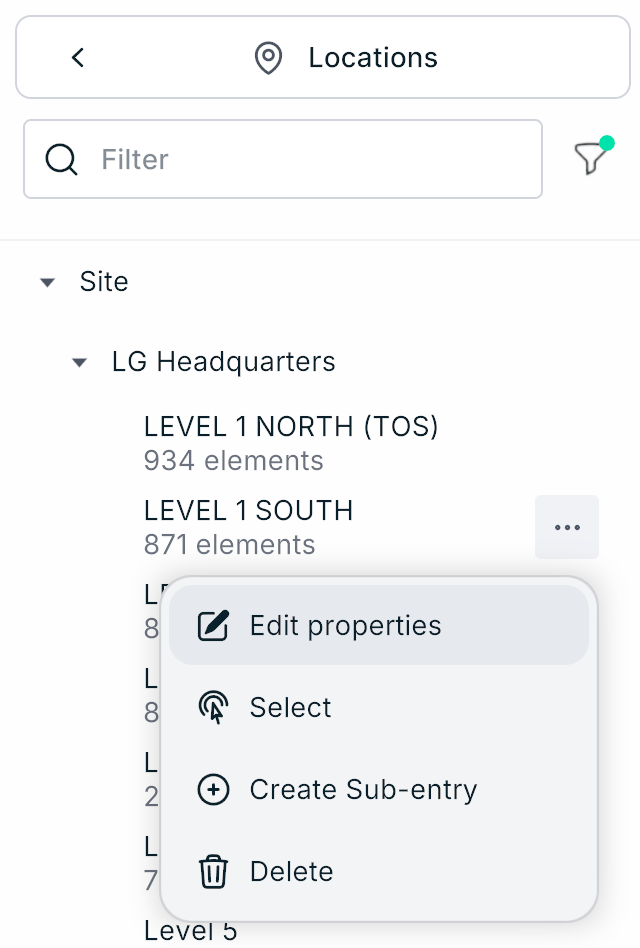
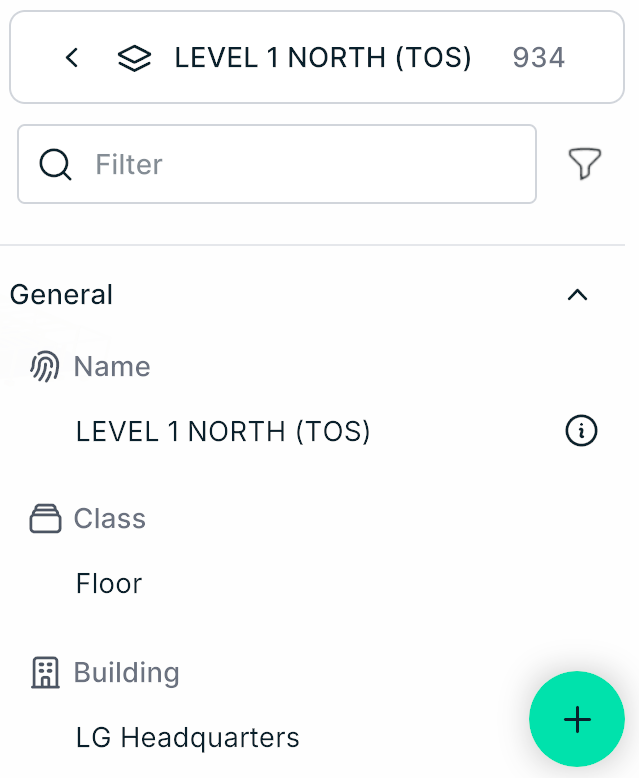
If any products have been assigned a location, the number of products in this location will be displayed below the location itself. Clicking a location will select all objects in this location. Double-click a location to open its details.
Click the ellipsis on the right of a location to *Edit* it (*View* when you can't edit it), *Select* its objects, *Create sub-entry*, *Assign geometry* or *Delete* it. If its sub-locations are also used, *Select Directly Assigned* selects only the objects that are directly assigned to this location. If you delete a location that is still in use, Qonic asks you to confirm first.
*Assign geometry* converts the products you have selected into the geometry of this location: the selected products are removed from the model and replaced by new location geometry.
You can edit these locations by changing their name, place in the spatial hierarchy, elevation, and by adding other spatial properties. In the details of a location, use *Add parent location* or *Edit parent location* to change its place in the hierarchy.
Locations can have a hierarchical relation, for example a site consisting of one or more buildings, which in turn consist of multiple floors. If an object is located on a specific floor, it will also automatically be part of the respective building and site. Drag a location by its handle to change its order within the same level.
To create a new location, open a library and click the green + button in the bottom right corner of the panel (not included in the Free plan).