> For the complete documentation index, see [llms.txt](https://help.qonic.com/llms.txt). Markdown versions of documentation pages are available by appending `.md` to page URLs; this page is available as [Markdown](https://help.qonic.com/documentation/qonic-application/querying-and-reporting/libraries-panel/locations-library.md).
# Locations Library
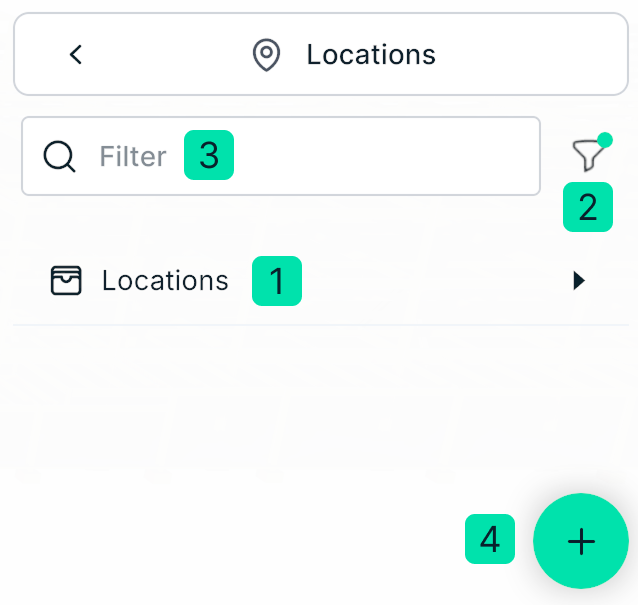
Use this panel to get an overview of all Location libraries in the project (1). If no libraries are displayed, check if there are any currently active filters (2 and 3). If no filters are active and no libraries are displayed, this means there are no location libraries defined on project level, and the currently opened models contain no location libraries on model level. You can create a new location library by clicking the + button in the bottom right corner (4).
Click a location library to open it. This will display all the locatios in this library, and allows you to search on specific locations. If you are not finding the location you are looking for, make sure no filter is active. An active filter is indicated by a green dot over the filter icon.
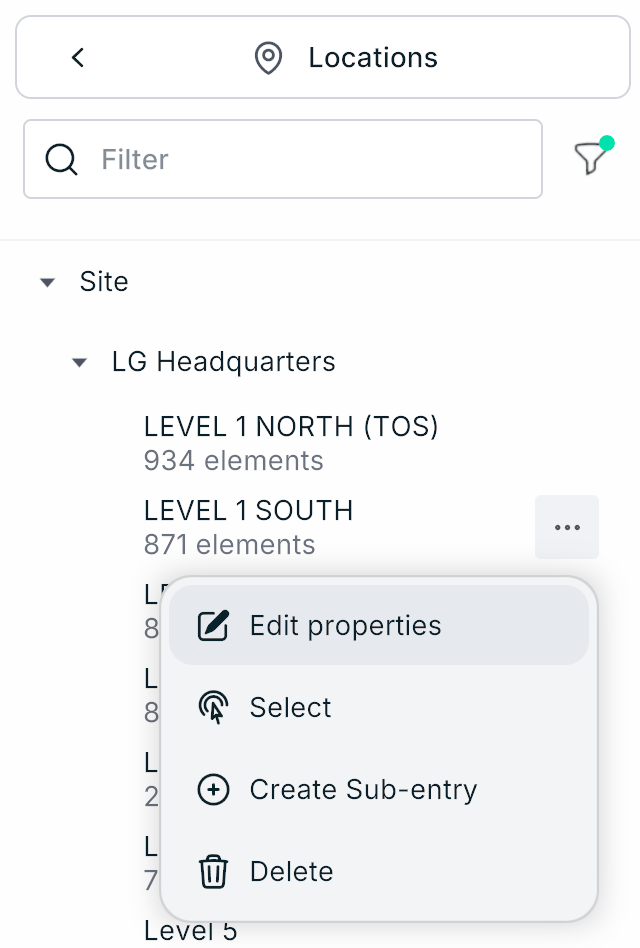
If any products have been assigned a location, the number of products in this location will be displayed below the location itself. Clicking a location will select all objects in this location .
Click the ellipsis on the right of a location to edit it, delete it or to create a sub entry.
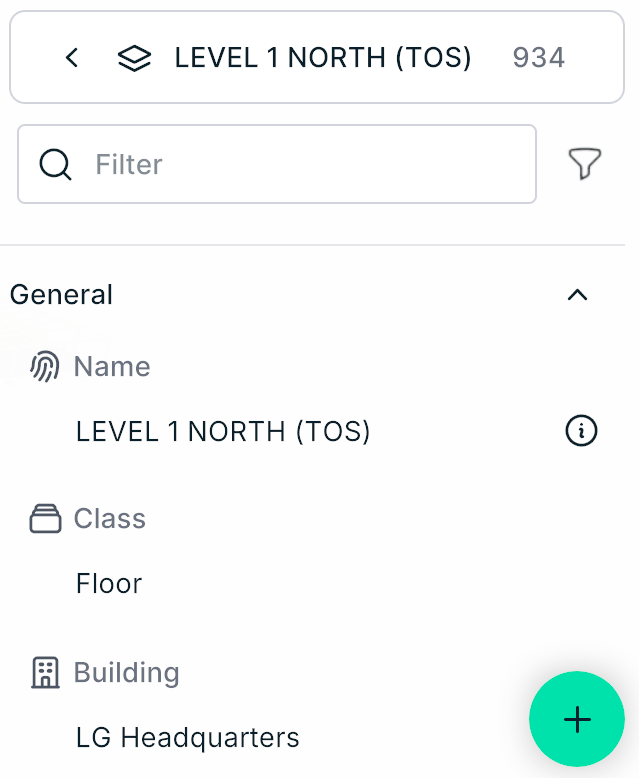
You can edit these locations by changing their name, place in the spatial hierarchy, elevation, and by adding other spatial properties.
Locations can have a hierarchical relation, for example a site consisting of one or more buildings, which in turn consist of multiple floors. If an object is located on a specific floor, it will also automatically be part of the respective building and site.
To create a new location, open a library and click the green Create Location button at the bottom of the panel.